





How to login to Retirement Services Online
Retirement Services Online uses Login.gov, the U.S. Government's secure login tool. Creating a Login.gov account is a one-time task. After you create your Login.gov account and link it with Retirement Services Online, you will be able to sign into Retirement Services Online using your Login.gov account. Users who applied for retirement using the Online Retirement Application (ORA) should use their same Login.gov credentials that they used for their application.
-
Go to Retirement Services Online
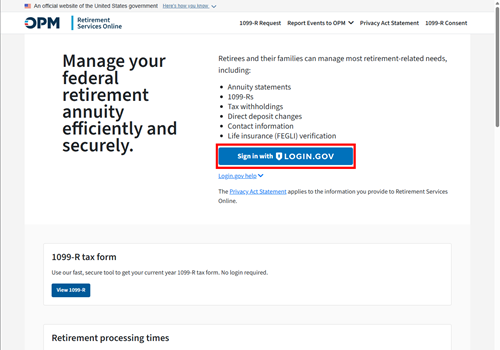
Navigate to Services Online homepage and click on the button that says "Sign in with LOGIN.GOV."
-
Create or Use login.gov account
You will only need to do this once.
If you already have a Login.gov account, you don't need to create a second one. Use your existing Login.gov email address, password, plus one of the two-factor authentication methods to sign into Services Online. If you are using your Login.gov account that you used to complete your application in the Online Retirement Application (ORA), you should be let right into Retirement Services Online.
Otherwise, click the "Create an account option" on this page and proceed with the below steps to complete account creation.
-
Enter an email address
Your new username for signing into Retirement Services Online (RSO) will be your email address that you establish in Login.gov. If you completed your retirement application using the Online Retirement Application (ORA), you should use the same login that you used for that website.
-
Confirm your email
If you have already created a Login.gov account, you will skip this step.
If you are creating a new account, you will receive a confirmation email from Login.gov (no-reply@identitysandbox.gov). Check your spam filters if you do not see this email in your mailbox. Considering adding this address t your safe senders list if you are having difficulties retrieving this email. Click the "Confirm email address" button in the email. -
Create a strong login.gov password
If you have already created a login.gov account, you will skip this step.
Login.gov passwords must be at least twelve characters. There are no other restrictions. You can even use more than one word with spaces to get to 12 characters. Try using a phrase or a series of words that only you recognize.
Your login.gov password should be different from passwords you use for other accounts such as your bank account or email. Using the same password for many accounts makes identity theft easier.
NOTE: This step pertains to creating your login.gov password. The first time you log in to Retirement Services Online with your Login.gov account, OPM will send an activation code to your email. This activation code lets you link your Login.gov account to Retirement Services Online.
-
Select your method of authentication
Using authentication methods keeps your account more secure than using only a password.
If you have already created a Login.gov account, you will skip this step.
If you are creating a new Login.gov account, you can choose between text messages, phone calls. or one of the other options accepted by login.gov.
-
Test your authentication method
If you have already created a login.gov account, you will skip this step.
If you are creating a Login.gov account, you will then be asked to use your authentication method to confirm that it works and verify who you are. -
Select Agree and Continue to Services Online to link your account
You are offered the option to add a second authentication method to your Login.gov account. If you are concerned about losing access to your primary too, the recommendation is to create backup codes that you can keep in a safe place and use if needed.
Now you've created an account with Login.gov.
-
Complete the activation of your Retirement Services Online account
Once you log in through Login.gov, you will receive an activation code to your email. After you enter the activation code you may need to verify your personal information. Once you have successfully verified your information, you will be logged in to Retirement Services Online.
-
Use your Login.gov account every time you sign into Retirement Services Online
Now that you have linked your Services Online and login.gov accounts, you will need to use your login.gov email address, password, and two-factor authentication every time you want to sign into Services Online. Do not share your login.gov credentials and always verify or bookmark the URL.
Was this helpful?
A claim number is required to make a help submission.
If you are an annuitant, you can find your CSA or CSF claim number on your 1099-R, your annual COLA notice or your Benefits Booklet.
If you are unable to locate your CSA or CSF claim number, or you are not a retiree, former spouse of a retiree or a survivor of a retiree, or you are inquiring about the status of a refund application, please contact us on
1-888-767-6738 and one of our representatives will be able to assist you.
Contact us for more support
Report a Death
To report a death of a Retired Federal Employee or Current Federal Employee, please click the link below that applies:
Submit your information below and one of our Customer Service Specialists will begin working on your request. All fields are required. We usually respond within 3 to 5 business days.
Please be advised that the information submitted must be entered by the annuitant or on behalf of the annuitant by the Representative Payee.
Call us if you can't find an answer to your question on OPM.gov or if you can't sign in to OPM Retirement Services Online to manage your annuity account. You may also need to call us for special or complex cases, or because we directed you to.
Phone: 1-888-767-6738
TTY: 711
Hours: Monday thru Friday, 7:40 a.m. to 5:00 p.m. ET
Closed on federal holidays
Our busiest time is between 10:30 a.m. and 1:30 p.m. ET.
Please make sure your first and last name, phone number, email address, claim number, and signature are included in any inquiries or documents you mail to us. We usually respond within 1 to 3 weeks after we receive your mail.
Retirement Operations Center
U.S. Office of Personnel Management
Post Office Box 45
Boyers, PA 16017
OPM Retirement Services does not have a main fax number.
You should only fax us documents if an official OPM form or one of our Customer Service Specialists asks you to (the fax number will be provided on the form, or the Customer Service Specialist will provide you one.) Otherwise, you should mail us your documents.